


Symbol: 
Function: The tab provides an editor for configuring the frame interface of the visualization opened below. This editor is used to define properties for the frame interface and then configure each in detail. If the visualization is referenced in a superordinate visualization with a frame, then the actual values can be configured there by means of the properties configured here, which act as transfer parameters. The frame with the referenced visualization then presents itself just like a visualization element and is supported by the same editors.
Call: Automatic when the visualization object is opened
In order to keep the frame interface of a visualization clear, we recommend that you pass as few as possible standard frame properties as parameters.
When a visualization with a frame interface is referenced by another visualization by means of a frame element, it brings with it the properties displayed here in the tree view. In the referencing visualization, it then presents itself like an ordinary visualization element: with properties categorized and arranged hierarchically. And with editors to help specify the value with editors that match the data type.
|
Hierarchical tree view with categories |
Corresponds to the “Properties” view of a visualization element A frame interface consists of properties which can be thematically grouped and hierarchically arranged using categories. |
|
“Element description” |
Description which is displayed in the visualization editor when using the visualization as a reference in a frame |
|
“Property” |
Externally visible property represented as a node of the hierarchical tree view Node types:
|
|
“Default Value” |
Displayed in the “Properties” view under “Value” (if nothing else has been configured there) According to the variable type as literal or variable Example: |
|
“Variable Type” |
Variable type of the property, selected from the data types available project-wide (basic data types, user-defined data types, function blocks, library POUs) Example: |
|
“Text ID” |
ID from a project-wide text list to localize the name of the property Example: |
|
“Description ID” |
ID from a project-wide text list which refers to a description of the property Example: |
|
“Editor Type” |
Type of inline editor which will open when configuring the element property of the frame: Editor for “Text”, “Variable”, “Color”, “Font”, “Text Box”, “Test List”, “Image”, or “Combo Box” |
|
“Variable” |
Link to the interface variable or project variable Example: |
Example: Gauge visualization
Fig. 265: Frame configuration of Gauge
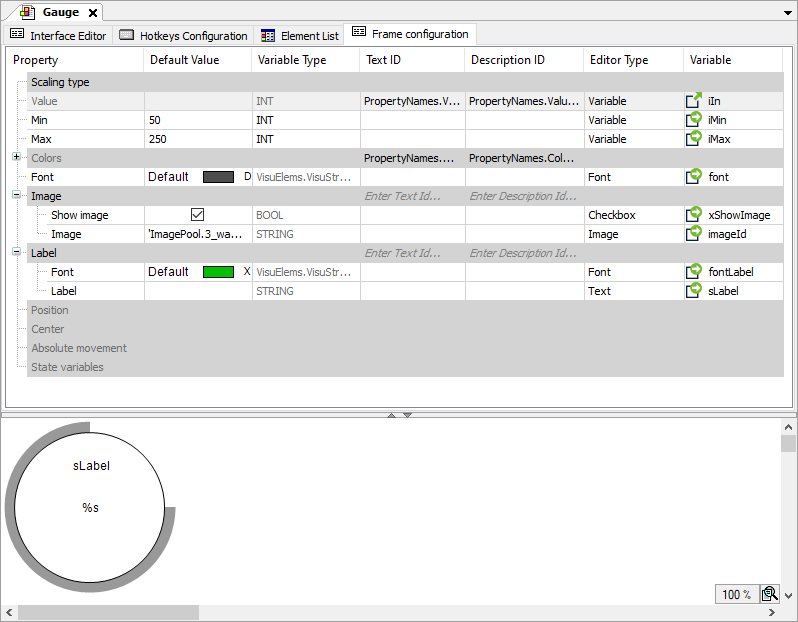
The frame interface of Gauge hat the following properties as parameters: Scaling type, Value, Min, Max, Colors, Font, Image, and Label. In addition, the default Position, Center, Absolute movement, and State variables properties can be parameterized.